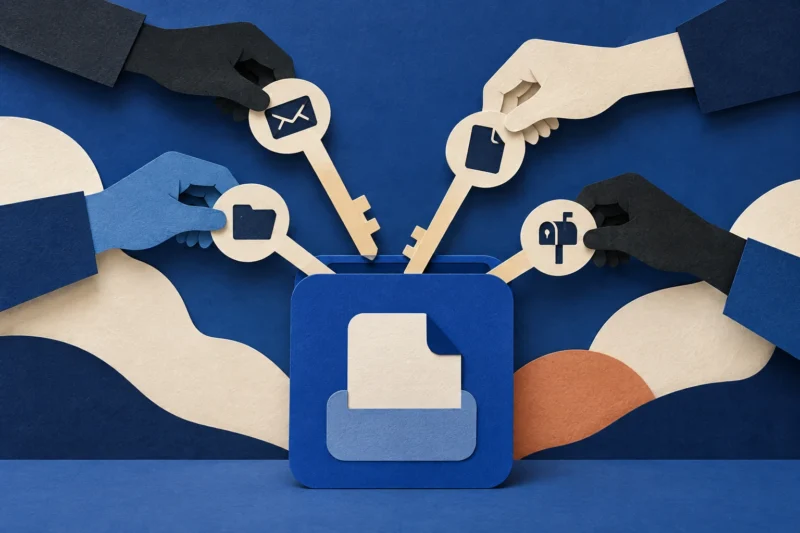
Unexpected MFA Prompts: What They Mean and What to Do Next
An unexpected authenticator request does not prove your password is stolen—but approving it is not the way to find out. Here is a calm, evidence-led response for personal and work accounts.
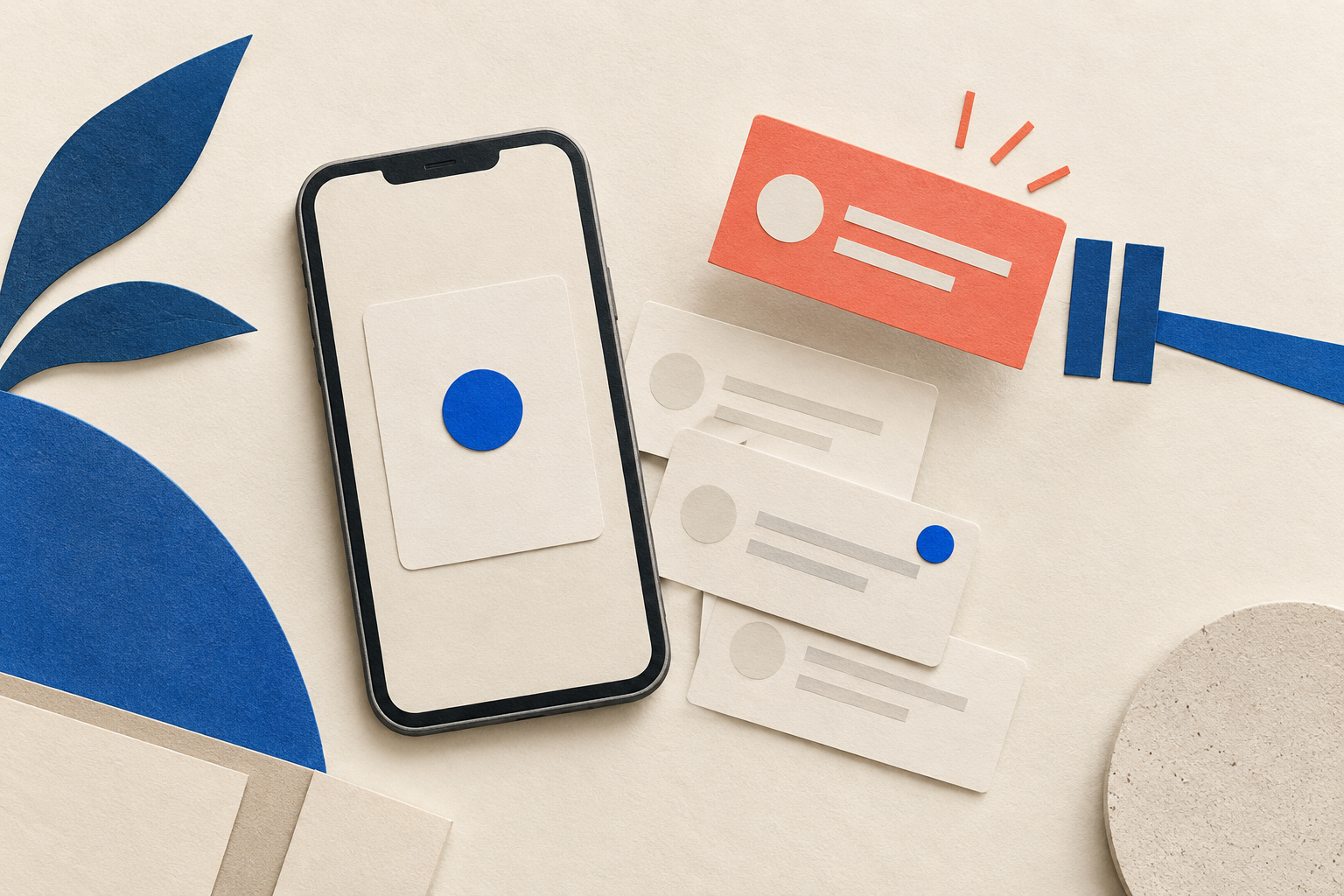
Short version: If your authenticator asks you to approve a sign-in you did not start, do not approve it—not to “make it stop,” and not because a caller says they are cancelling an attack. An unexpected request is a reason to pause and verify through the service’s official app or website. It does not prove by itself that someone knows your password or has entered your account; authentication flows vary. But it is unusual enough to check recent activity, protect the account, and report repeated prompts.
Do this now
- Decline an unrequested approval if the app offers a clear reject option; otherwise leave it unanswered.
- Never share a one-time code, number-matching value, recovery code, or screen with a caller or message sender.
- Open the account from a saved app or typed address—not from a prompt, text, or support link.
- Review sign-in activity and recovery methods. If anything is unfamiliar, use the provider’s account-security flow and change the password from a trusted device.
- For a work or school account, report it to your IT/security team promptly and follow their instructions.
The notification is a signal, not a verdict
Multi-factor authentication (MFA) adds a second check to a sign-in. A push prompt asks the person holding the registered phone to approve or reject a particular attempt. When a notification appears unexpectedly, the natural fear is, “They already have my password.” Sometimes a prompt can be part of an attacker’s attempt to sign in; sometimes it can follow a passwordless flow or another account action; and sometimes the surrounding context is incomplete. A stray request can also have innocent explanations, such as an account identifier entered incorrectly. The notification alone rarely tells you which explanation is true.
That uncertainty is precisely why the safest response is not to guess. Treat an approval you did not initiate as unauthorized. Reject it if the app presents a straightforward option, and do not enter a displayed number unless you personally began the sign-in and can match the number on the sign-in screen to the one in the authenticator. No legitimate support representative needs you to approve an unknown prompt to “cancel,” “trace,” or “block” a sign-in.
| What you see | What it can tell you | Safe response |
|---|---|---|
| One unexpected push | An authentication request reached a method linked to your account; the reason may not be visible | Do not approve. Open the provider independently and review activity |
| Repeated prompts or calls | Someone or some process may be repeatedly initiating authentication; repetition is not proof of a successful sign-in | Reject/ignore, stop engaging with anyone who contacts you about it, and report it |
| A number appears in a prompt you did not start | The code is not a safety check for you; it is part of an approval flow | Do not enter the number or tap an option to clear the notification |
| You approved one by mistake | The approval may have completed a sign-in, but the notification alone cannot show what the session accessed | Use the service’s official recovery steps immediately and contact workplace IT if applicable |
Why attackers lean on the “Approve” button
Push-based authentication is convenient: a person can confirm a real login from a phone rather than type a code. That convenience creates a human pressure point. A stream of prompts can interrupt someone until they tap reflexively, or a convincing caller can claim that an approval is needed to stop fraud. Security teams call one version of this pattern MFA fatigue or push bombing. The core manipulation is not technical complexity; it is making the wrong action feel like the quickest way back to normal.
In recent Reddit threads, people describe receiving repeated Microsoft Authenticator requests, being unsure whether a password reset would stop them, and worrying that denying a prompt might make the requests come faster. These posts are useful because they show the questions real users ask under pressure—not because they establish how common the activity is, or prove a particular cause. Microsoft’s own account guidance is more decisive about the next step: review sign-in activity, flag activity you do not recognize, and secure the account when there is reason to believe another person may have access.
Number matching can make accidental approval harder in some authenticator flows: the person signing in must enter a number shown on the sign-in screen. But a matching number is not a reason to approve a request that you did not initiate. A caller could still try to coach someone into matching a number, and other services may use different prompts. Likewise, a password reset can be important after suspicious activity, but it may not stop every prompt flow by itself. Avoid blanket fixes that remove MFA or change recovery settings without understanding the account’s options.
A calm response, step by step
1. Stop the conversation around the prompt
Do not approve, enter a number, read a code aloud, tap a link in a notification, or follow instructions from an unexpected caller, text, email, or workplace chat. If somebody is on the phone, end the call. A real help desk will not punish you for taking time to verify a security request. If the prompt itself includes a deny option, use it only if you can identify it confidently; if you are unsure what the screen is asking, leave it alone and open the official app separately.
Do not disable MFA to quiet the alerts; it can remove a useful safeguard. Ask the provider or your workplace IT team for an approved alternative, and do not remove the current method until a replacement and recovery route are confirmed.
2. Navigate to the account yourself
Use the normal app already installed on your device, a bookmark you created earlier, or an address you type yourself. Avoid links sent alongside the prompt; an attacker may pair a real-looking security notice with a fake sign-in page. Our guide on login windows that imitate a browser explains why the picture of a familiar page is not enough to verify where a password is going.
From the official account security area, review recent sign-in activity, devices, recovery email addresses and phone numbers, and any newly added authentication methods. Look for successful sign-ins you do not recognize, changes you did not make, or unfamiliar sessions. Location data can be approximate, and mobile networks can make a location look different from where you are; assess the whole event, not a map pin alone. Equally, an empty activity page is not proof that no one tried anything: providers show different kinds of events and may not display every failed request.
3. Choose the response that matches the evidence
If you find an unfamiliar successful sign-in or account change, use the provider’s “secure account” or recovery process. Change the password to a unique one from a device you trust, end other sessions if the service offers that control, and check that recovery methods still belong to you. If an email account may be affected, inspect forwarding rules and other settings that could silently preserve access. Revisit connected apps only where the provider makes a clear, documented control available. Our separate guide explains why a password change may not finish an account-takeover response.
If there is no unfamiliar activity, still reject repeated prompts and make sure your password is unique. Check whether you recently signed in on another device or started a recovery flow. If the prompts continue, contact the provider using its official support route and ask whether your account supports a different sign-in method, such as a passkey or security key. Do not remove your current method until you have confirmed a working replacement and recovery option; otherwise you could lock yourself out.
4. If you approved one by mistake
Act quickly, but do not panic-click links in the notification. Open the account independently, change the password if the service recommends it or you see suspicious activity, revoke other sessions where available, and review recent changes to recovery details and authentication methods. Contact the official provider or workplace help desk. If the account holds financial, work, or sensitive personal information, say clearly that you may have approved an unexpected sign-in and ask what to secure next. If you reused that password elsewhere, change it on those accounts too—starting with email, banking, and password-reset accounts.
If it is a work or school account, report the event immediately even if you are uncertain whether the approval succeeded. Do not delete notifications, wipe the device, or try to investigate the source yourself before contacting your organization; the security team may need the timing and details. Follow its incident process, including any instruction to disconnect a device or preserve evidence. A short, factual report is enough: when the prompt appeared, whether you approved or rejected it, what service it named, and whether anyone contacted you.
Personal account or workplace account?
The underlying advice is similar—never approve a sign-in you did not start—but the response paths differ.
- Personal account: Open the provider’s account security page independently, review recent activity and recovery information, follow its “secure account” process if something is unfamiliar, and use official support if prompts persist.
- Work or school account: Notify the organization’s help desk or security channel. They may be able to correlate sign-in logs and authentication details. Do not rely only on a consumer account activity page or make administrative changes yourself.
Do not assume a request from “IT” is real because it arrives in the same chat platform your company uses. Verify a reset or MFA-enrolment request through a known, separate channel, such as the company directory number or established support portal. This is the same human problem discussed in the inbox-flood-then-IT-support sequence: an attacker may exploit confusion created by one event to make the next request feel legitimate.
How to reduce repeat pressure
When the immediate issue is handled, make the account harder to pressure. Use a unique password stored in a reputable password manager. Keep recovery email and phone details current and protected with their own strong sign-in method. Where supported, consider passkeys or hardware security keys and learn how the service’s sign-in prompt works before you are under pressure. For work accounts, ask IT which methods are approved; a personal device or consumer setting may not be appropriate for an organization-managed account.
Agree with family or coworkers on one simple rule: no one approves an authentication request because another person asked them to. If an employee is uncertain, they should report the prompt without fear of blame. Organizations can reduce repeated pressure by making a known reporting route easy to find, using number matching or phishing-resistant MFA where supported, and training help-desk staff to verify identity before resetting credentials. CISA recommends phishing-resistant MFA; where push notifications remain in use, its guidance points to number matching as a mitigation for MFA fatigue. These controls reduce risk, but they work best alongside a clear, human response process.
The key idea
An unexpected authentication prompt is not a puzzle you must solve in real time. It is a pause point. Do not approve it, do not share a code, and do not let an unsolicited “support” person take over the explanation. Verify through the service you opened yourself; check the account’s activity and recovery settings; then choose the provider’s recovery steps or your organization’s incident route. The goal is not to prove exactly what happened from one notification. It is to prevent a pressured tap from becoming authorization and to give the right support team enough information to help.
Sources and further reading
- Microsoft Support: What happens if there’s an unusual sign-in to your account
- Microsoft Support: Review recent account activity
- Microsoft Learn: How number matching works in MFA push notifications
- CISA, FBI, NSA and MS-ISAC: Phishing Guidance
- Reddit user discussion: repeated unexpected Microsoft Authenticator requests (June 2026) — anecdotal experience, not incidence data.
- Reddit user discussion: a burst of authenticator prompts (June 2026) — anecdotal experience, not an official product diagnosis.
Found a factual error or a source that has changed?
Send a correction →